

Setting up local prompts in Promptwatch starts with two decisions: what your customers might ask and where you want those questions tracked. A prompt such as “Which dentist in [city] offers evening appointments?” gives you a more specific question to monitor than a broad search for dental services.
Promptwatch organizes tracking through monitors, which control the location, language, AI models, and other settings used to run your prompts. That structure lets you separate markets instead of combining every city into one report.
This guide explains the documented setup process, provides practical prompt examples, and compares Promptwatch with RadarKit. The distinction between writing a city into a question and running that question from a city-level location is especially important when choosing a plan.
Key takeaways
- Promptwatch monitors define the geography, language, models, persona, and tracking frequency for their prompts. Tags and topics organize the results without changing that run context.
- You can add prompts manually, batch upload them, generate them with AI, generate them from keywords, or use Prompt Explorer.
- Promptwatch’s published Business plan includes state and city-level tracking at $579 per month. Professional lists country-level tracking at $245 per month.
- RadarKit starts at $29 per month and includes local business tracking on its standard plans. However, its pricing table reserves state and city-level tracking for Enterprise.
- RadarKit is the stronger overall value choice for a broader local visibility workflow. For specifically configured city-level tracking, compare its Enterprise quote with Promptwatch Business before deciding.
How to Choose Local Prompts at a glance
Use the following examples as a planning worksheet, not as measured search-volume data.
| Prompt type | Example | What you want to learn |
| Category discovery | “Which digital marketing agencies serve [city]?” | Whether your business appears in category recommendations |
| Service requirement | “Which dentists in [city] offer evening appointments?” | Whether AI connects your business with a specific service |
| Customer problem | “Where can I get an emergency laptop repair in [city]?” | Whether your business appears for urgent needs |
| Comparison | “Compare coworking spaces in [city] for a five-person team.” | Which businesses appear together and how they are described |
| Neighborhood | “Which cafés in [neighborhood] have Wi-Fi?” | How recommendations relate to a smaller service area |
| Branded question | “Does [brand] provide home visits in [city]?” | Whether answers describe your offering correctly |
| Location-dependent | “Which physiotherapists are near me?” | What recommendations appear under the configured location |
A useful starting set covers discovery, a specific need, and a comparison. Add questions that match services you actually provide, then keep the wording consistent when comparing locations.
What Are Local Prompts in Promptwatch?
Local prompts in Promptwatch are questions designed to examine AI answers for a particular market. They might include a city or neighborhood in the wording, or they might rely on the geographical context configured in a monitor.
Promptwatch’s documentation describes a monitor as the container for settings such as language, country, optional state and city, persona, models, and tracking frequency. Prompts connected to that monitor run within its defined context.
These are two separate parts of the setup. “Best accountant in [city]” names the location explicitly. “Best accountant near me” requires you to pay closer attention to the geographical settings used for the run.
Why Local Prompts Matter for AI Search & GEO
For a local business, the useful question is not simply whether AI mentions the brand. It is whether the brand appears for the services and locations that matter to its customers.
Promptwatch’s monitor structure supports that analysis by separating tracking contexts. Its tags and topics also let you filter prompt-related results, citations, and content gaps by useful groupings.
For example, an agency could create separate monitors for [city A] and [city B], then use the same “website design” topic in both. That gives the team a consistent way to review one service across two markets.
Local vs. Global Prompts: When to Use Each
The choice depends on the question you want the tracking to answer.
| Prompt scope | Example | Suitable purpose |
| Global | “What should I look for in an accounting firm?” | Understanding broad category questions |
| Country-specific | “Which accounting firms work with Indian startups?” | Examining recommendations within a national market |
| City-specific | “Which accounting firms serve startups in [city]?” | Reviewing recommendations for a local service area |
| Neighborhood-specific | “Which accountants have offices near [neighborhood]?” | Checking a more narrowly defined area |
| Location-dependent | “Which accountants are near me?” | Examining answers under a configured location context |
Use global questions for broad category coverage and local questions for service-area analysis. Keep those purposes clear when interpreting the results.
5 Steps to Set Up Local Prompts in Promptwatch
The documented workflow follows five practical stages:
- Create a monitor for the location and audience.
- Prepare the questions you want to track.
- Configure the available models and geographical settings.
- Add the prompts and connect them to the monitor.
- Check the settings, activate tracking, and review responses.
Promptwatch’s setup guides confirm the monitor creation, model selection, prompt entry, classifications, and language settings used in this workflow.
Step 1: Create a Location-Specific Monitor
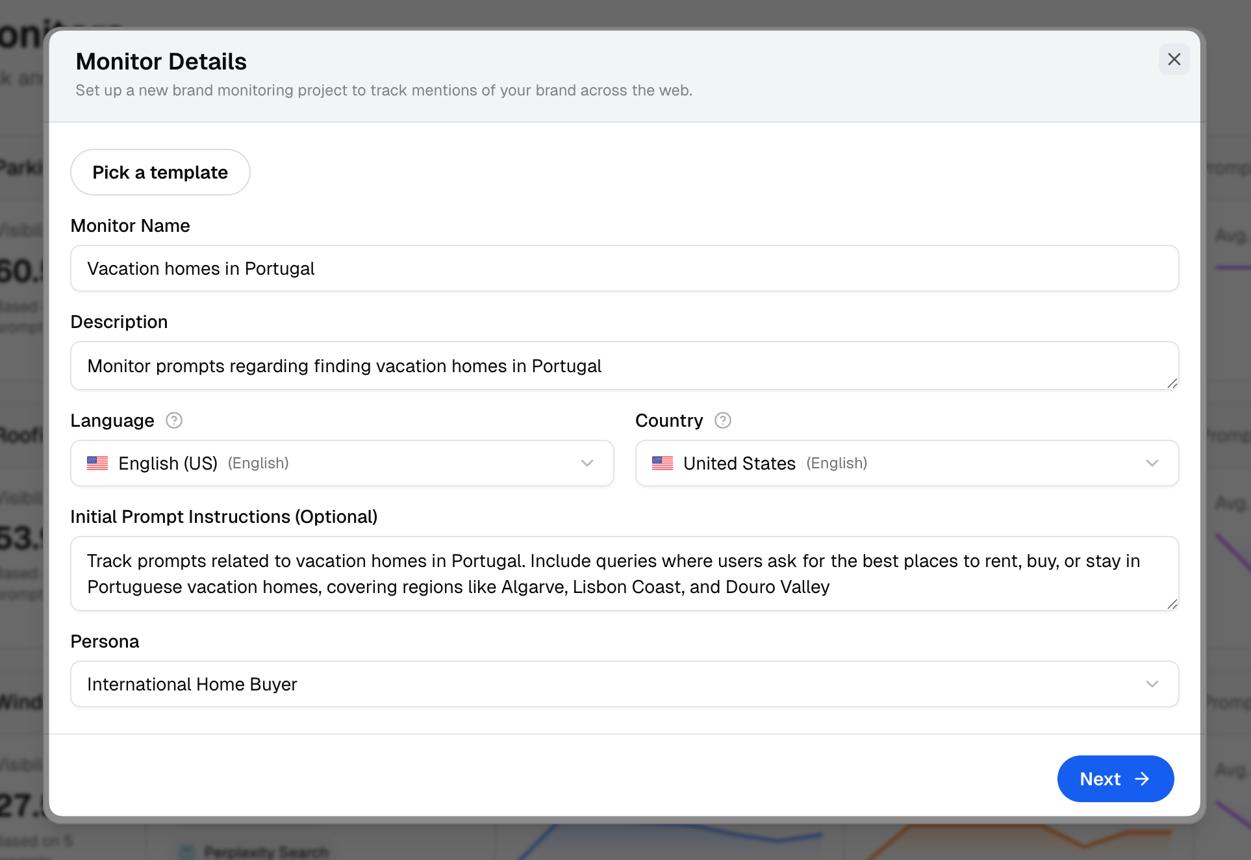
Start with the tracking context rather than the prompt list. A clearly named monitor makes it easier to understand which market and language a set of responses represents.
Promptwatch’s organization guide recommends creating a separate monitor when the run context changes, including the market, language, persona, model set, or schedule.
Starting a New Monitor for a City or Region
Follow Promptwatch’s documented process:
- Open Monitors in the sidebar.
- Select “New Monitor.”
- Enter a descriptive monitor name.
- Select the prompt language and country.
- Add state and city if needed and available on your plan.
- Configure the persona and models.
- Select “Next” to add prompts.
A practical name could be [city] | English | Dental Services. It tells the team what the monitor covers without opening its settings.
Before building a city-by-city setup, confirm your subscription includes the required geographical controls. Promptwatch explicitly lists state and city-level tracking under Business.
Keep the difference between monitors, tags, and topics clear:
- Monitors control where and how prompts run.
- Tags provide reusable labels, such as campaign, funnel stage, or team owner.
- Topics identify the subject of a prompt, such as pricing or emergency services.
For a multi-location dental brand, separate city monitors could share an emergency dentistry topic. A location-page-update tag could identify the questions connected to a particular content project.
A tag does not replace geographical configuration. Adding a [city] label to a prompt organizes it, but the monitor still determines its run context.
Step 2: Define Your Local Prompt Templates
Prepare a small, purposeful question set before adding local prompts in Promptwatch. Each question should have a clear reason for being tracked.
Use the examples below as templates. Replace the service, location, and requirement with details relevant to your business.
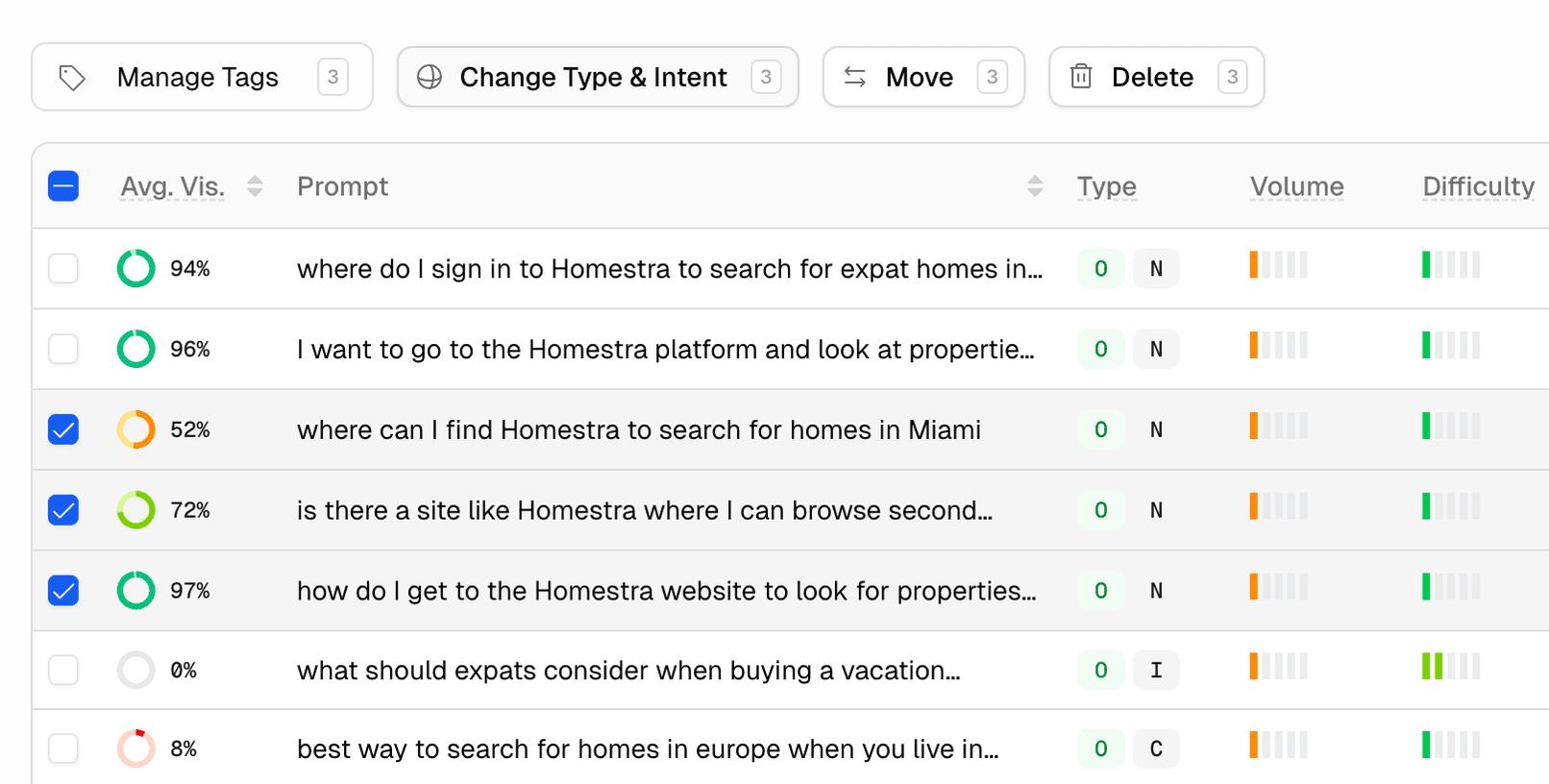
Category, Problem, and Comparison Prompts for Local SEO
| Prompt group | Template | Example |
| Category | “Which [business type] serve [city]?” | “Which SEO agencies serve [city]?” |
| Problem | “Where can I get [solution] in [city]?” | “Where can I get same-day laptop repair in [city]?” |
| Comparison | “Compare [business type] in [city] for [need].” | “Compare coworking spaces in [city] for remote teams.” |
| Service | “Which [business type] offer [service] in [city]?” | “Which dentists offer Invisalign in [city]?” |
| Budget | “Which [service providers] in [city] fit [budget]?” | “Which photographers in [city] offer packages under ₹20,000?” |
| Branded | “Does [brand] offer [service] in [city]?” | “Does [brand] offer weekend consultations in [city]?” |
These groups give the prompt set variety without filling it with minor rewrites of the same question.
Keep branded and non-branded questions distinguishable. A question that names your business serves a different analytical purpose from one asking AI to recommend providers.
Writing Prompts That Match How Local Users Ask AI
Write complete, straightforward questions. Add details only when they change the customer’s requirement.
For example, “Which gyms in [city] offer early-morning classes?” is more useful for that service than “best gym [city] fitness workout.” The first version identifies both the location and the requirement.
Build your initial list around questions your team receives in enquiries, sales conversations, and service requests. Treat those questions as starting hypotheses, then review whether the tracked answers provide useful information.
Avoid changing several details at once when comparing cities. Use a consistent template so location remains the main difference.
Step 3: Configure AI Engines and Geographies
This step determines the conditions under which your prompts run. Keep those conditions consistent if you want to compare results over time.
Promptwatch stores model selection and geographical context at the monitor level. Its current organization guide also includes language, persona, and tracking frequency in that context.
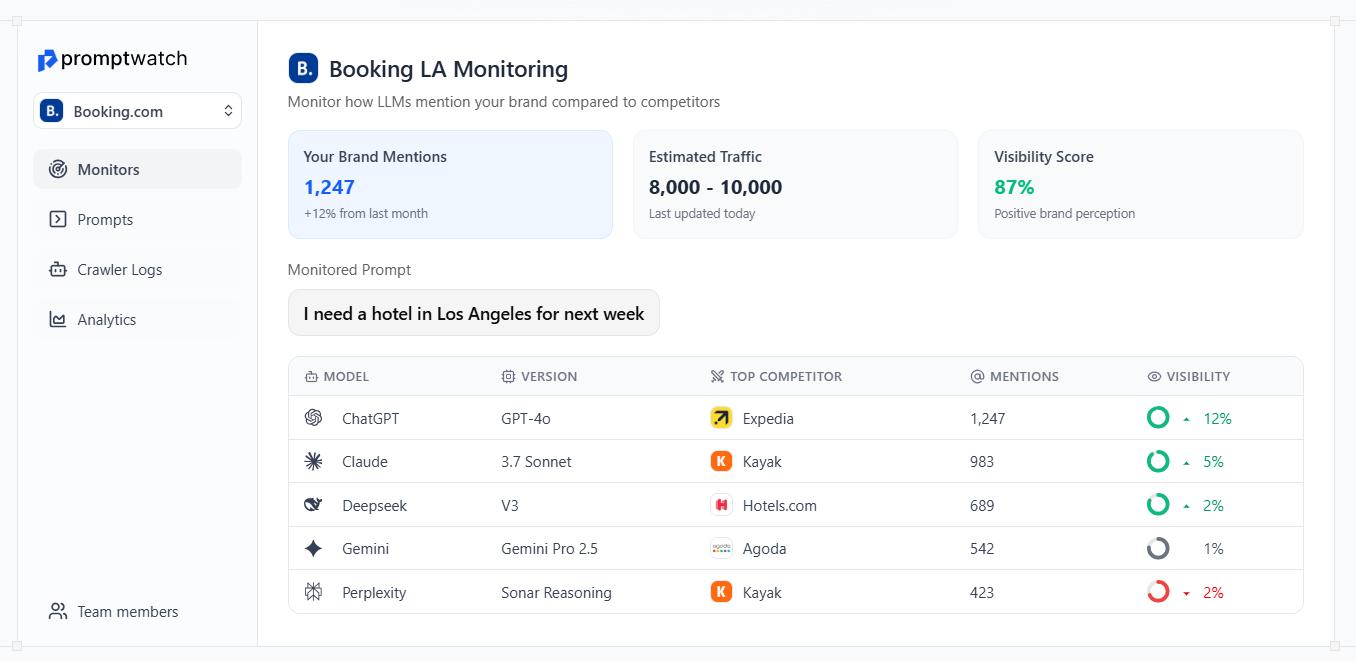
Selecting AI Models (ChatGPT, Perplexity, AI Overviews, etc.)
Promptwatch’s monitor documentation recommends ChatGPT, Perplexity, and Google AI Overviews as core options. It also identifies Google AI Mode and Microsoft Copilot as optional choices depending on the market.
However, its published standard plan cards specify tracking four models. Although the documentation uses broader language about model availability, plan your setup around the allowance shown for your subscription and confirm any additional access with Promptwatch.
For an initial workflow, choose a stable model set rather than changing platforms every time you review performance. Record the selected models alongside your location and language settings.
Setting Country, State, and City-Level Tracking
Promptwatch’s monitor creation guide lists country selection with optional state and city fields. Availability still depends on the subscription.
The published pricing distinguishes the following access:
| Promptwatch plan | Monthly price | Explicit geographical feature |
| Essential | $95 | Country-level access is not explicitly listed in the plan summary |
| Professional | $245 | Country-level tracking |
| Business | $579 | Country, state, and city-level tracking |
Prices and listed geographical features reflect the pricing page reviewed for this article.
Naming a city inside a prompt and configuring city-level tracking are not interchangeable. You can write a city-specific question, but you should not describe the resulting setup as city-level execution unless that location setting is available and selected.
Step 4: Add and Connect Prompts to Your Monitor
Once the monitor is ready, add the question set. Promptwatch provides several creation methods, so you can choose the one that fits the size of your list.
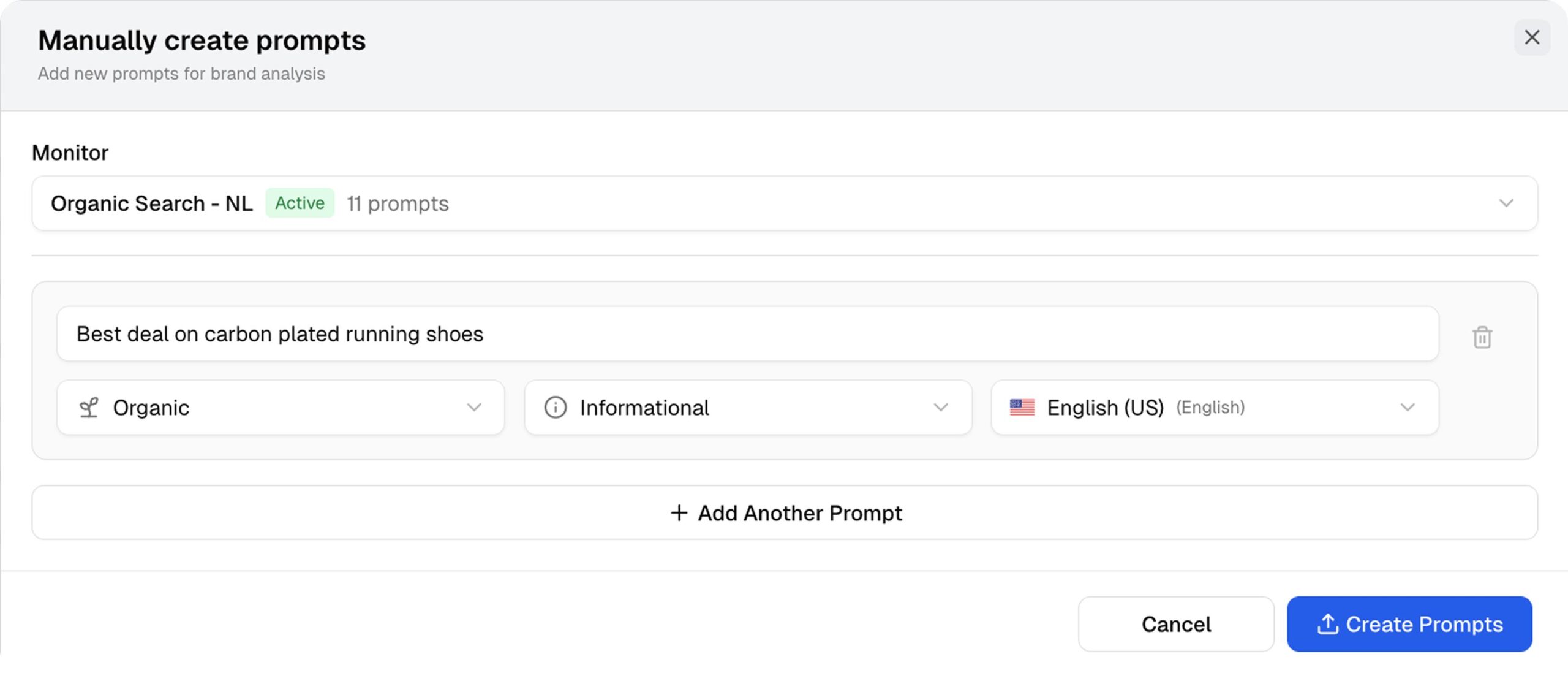
Manually Entering Local Prompts in the Dashboard
The documented route is:
- Select Prompts in the sidebar.
- Choose “Create Prompts.”
- Select the manual entry option.
- Connect the prompts to the intended monitor.
- Enter the questions.
- Choose their classifications.
- Select the prompt language and response language.
Before saving, check that each question belongs in the selected location. This is particularly useful when you are adding similar questions for several cities.
Also check whether branded questions and discovery questions have appropriate classifications. Keep the exact interface options as your guide rather than assuming every label will match an external worksheet.
Bulk Uploading or Generating Local Prompts with AI
Promptwatch documents five ways to add questions:
- Write prompts manually.
- Batch upload prompts.
- Generate prompts with AI.
- Generate prompts from keywords.
- Use Prompt Explorer.
For a larger setup, prepare a worksheet containing the question, intended monitor, location, language, topic, and tag. This is a planning aid, not a claim about the platform’s required upload columns.
Use the upload format shown in the current interface. After generating questions, review them for duplicate meanings, irrelevant services, and incorrect locations before starting tracking.
The objective is a useful prompt set, not the largest possible list.
Step 5: Validate, Classify, and Start Tracking
A final review helps ensure that local prompts in Promptwatch are connected to the context you intended.
Promptwatch’s prompt-entry documentation specifically instructs users to connect prompts to a monitor and make sure that monitor is active. It also requires classifications and prompt and response language selections.
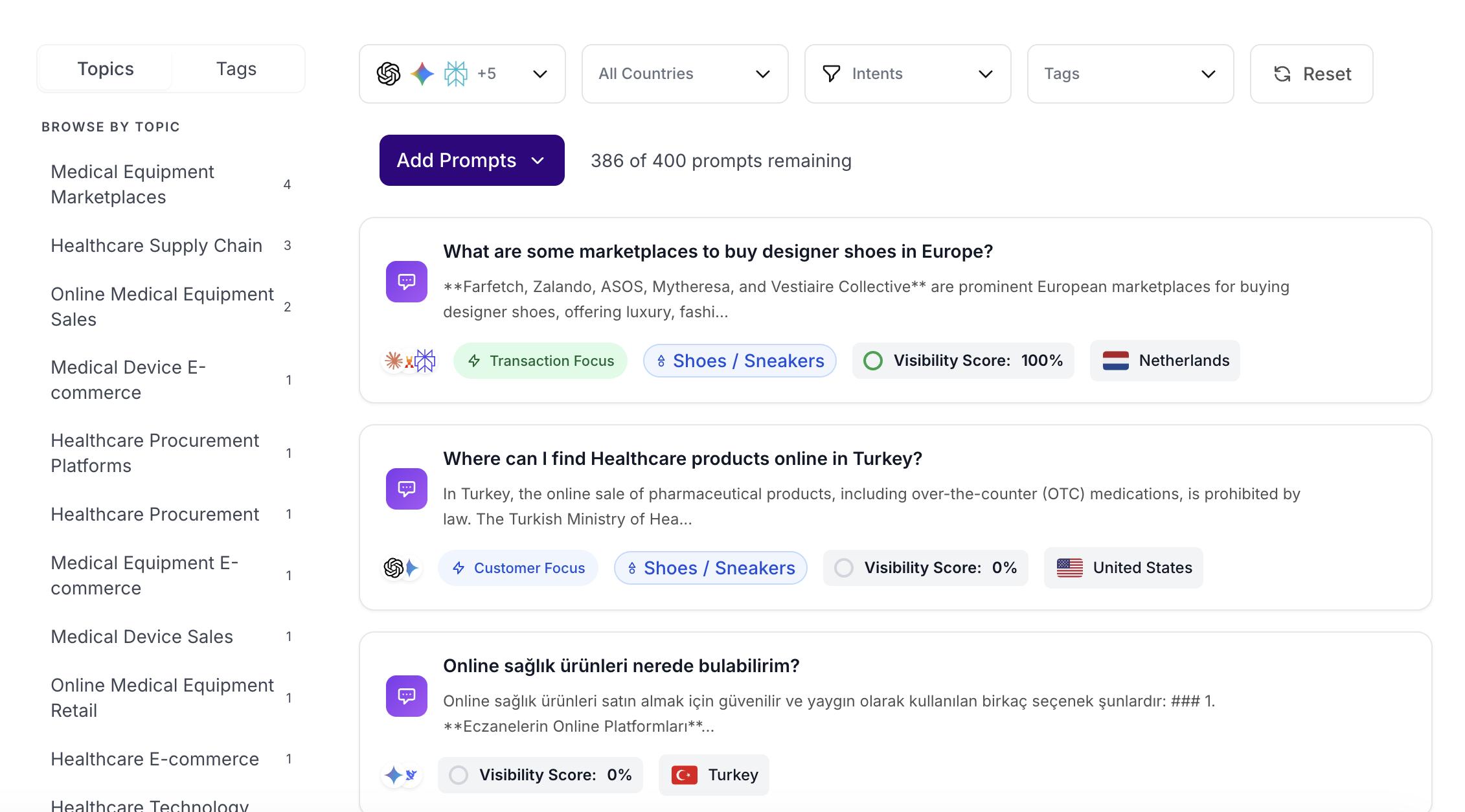
Checking Prompt Language, Classifications, and Response Language
Review these items before activation:
- The question names the correct service and location.
- The selected monitor matches the intended market.
- Prompt and response languages match your analysis.
- Classifications reflect the question’s purpose.
- Topics identify the subject consistently.
- Tags identify campaigns or ownership where needed.
- Model and geographical settings are correct.
Promptwatch supports bulk assignment of topics and tags from the Prompts table, making those labels useful for maintaining a consistent structure as the list grows.
For multilingual tracking, keep language contexts separate where appropriate. Promptwatch’s organization guide identifies a language change as a reason to create another monitor.
Activating Monitors and Reviewing Initial Visibility Data
Confirm the monitor is active, then review the collected responses rather than relying only on a headline metric. Promptwatch says an active monitor is necessary to begin receiving responses.
Use a simple review checklist:
- Did the answer recommend your business?
- Which other businesses appeared?
- Were the service and location described correctly?
- Which sources were cited?
- Did the response actually address the question?
Treat the first results as a baseline for the questions and conditions you selected. Keep a record of configuration changes so you can distinguish a new tracking setup from a change in observed performance.
Promptwatch vs. Radarkit for Local AI Visibility
Promptwatch and RadarKit both offer AI visibility tracking, but their published features and entry-level allowances differ. Compare the tracking depth you need alongside prompt capacity, projects, reporting, and price.
| Area | Promptwatch | RadarKit |
| Starting monthly price | $95 Essential | $29 Lite |
| Entry-level projects | 1 | 2 |
| Entry-level prompts | 50 | 15 |
| Entry-level frequency | Daily | Every 72 hours |
| Standard model allowance | Plan cards list four models | Six named platforms on every plan |
| City-level access | Business at $579 per month | Enterprise with custom pricing |
| Prompt organization | Monitors, tags, and topics | Multi-project tracking listed |
| Action features | Agent Chat, content gap analysis, content refresh, and other optimization features | Content, Outreach, Reddit, and Chat agents |
| Client reporting | Custom Reports appears in the feature list; confirm plan access | Client Portal and branded PDF allowances on all plans |
Plan prices, allowances, and features come from the published pricing pages and Promptwatch’s organization documentation.
How Radarkit Handles Local Tracking and Prompts
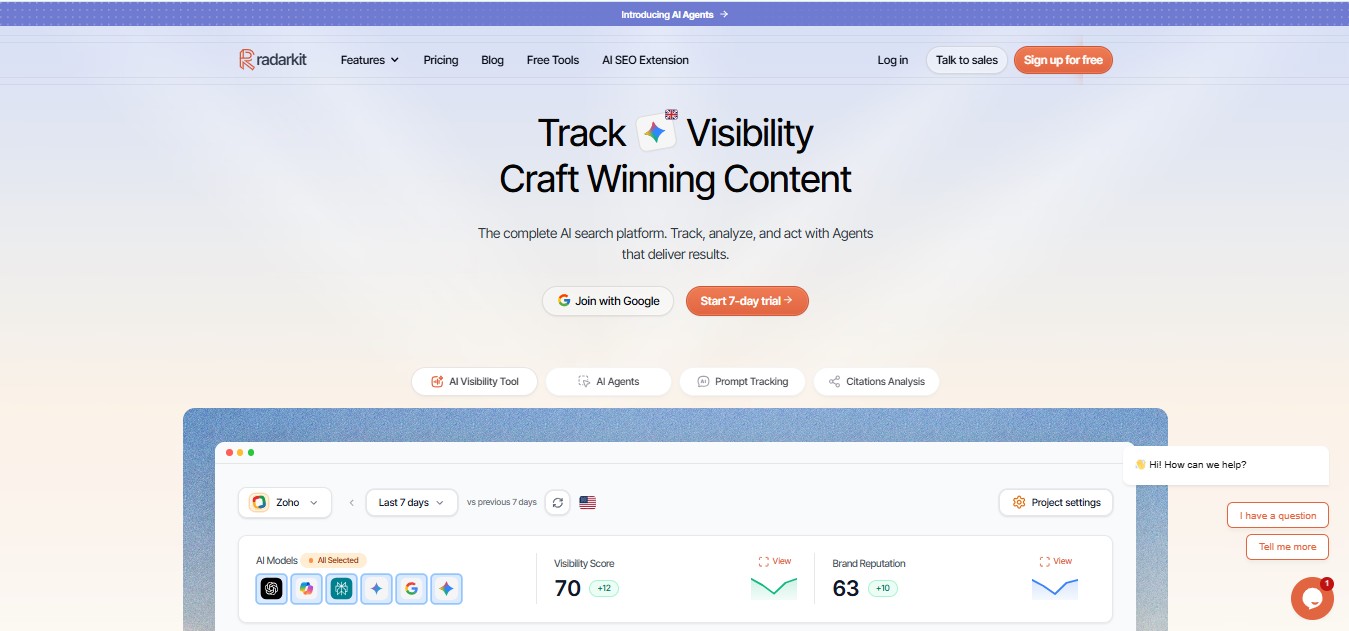
RadarKit’s Local Radar describes running prompts through a residential IP in the selected city. The feature tracks business recommendations, rank, ratings, and local competitors. Its broader tracking uses real chat interfaces rather than model APIs.
That makes its local workflow particularly relevant when you want to examine business recommendations alongside competitor appearances.
The pricing distinction remains important. RadarKit lists local business tracking on Lite, Growth, and Pro, but marks state and city-level tracking as unavailable on those plans. Enterprise adds those controls and lists 70+ locations. Standard plans list 50+ countries or locations.
Its standard monthly options are:
| Plan | Price | Projects | Prompts | Frequency |
| Lite | $29 | 2 | 15 | Every 72 hours |
| Growth | $79 | 5 | 50 | Daily |
| Pro | $139 | 10 | 100 | Daily |
| Enterprise | Custom annual pricing | Unlimited | Custom | Daily or weekly |
These are the published plan allowances.
RadarKit also includes shopping and ads tracking, Google Search Console, Google Analytics, WordPress integration, API and MCP access, and client reporting across its paid plans. Those features broaden its usefulness beyond collecting brand mentions alone.
When to Choose Promptwatch Over Radarkit (and Vice Versa)
Choose Promptwatch when your priority is a documented monitor-based setup with clear separation between run context, topics, and campaign labels. Its Business plan also provides a published monthly price for state and city-level access.
Choose RadarKit when your priority is an affordable starting point with local business tracking, several projects, reporting, and action agents included. Its Growth plan provides five projects and 50 prompts with daily tracking for $79 per month.
For agency work, RadarKit’s project allowances, Client Portal, and branded PDF reports make it an attractive overall package. For precise city-level execution, request an Enterprise quote instead of assuming the $29 plan includes city selection.
Neither recommendation establishes that one platform measures every answer more accurately. The comparison here concerns documented capabilities, allowances, and price.
Final Verdict: Best Tools to Choose for Local Prompts
RadarKit is the best overall choice here for value and a broader local visibility workflow. Its lower starting price, multi-project allowances, local business tracking, client reporting, and included agents offer a practical package for businesses and agencies beginning this work.
Growth is a sensible option to evaluate when you need daily tracking: it includes 50 prompts across five projects for $79 per month. Lite costs less, but its 72-hour refresh schedule and 15-prompt allowance suit a smaller initial setup.
Promptwatch remains a strong fit when your team wants its monitor, topic, and tag structure or a published city-level plan price. Business explicitly includes state and city-level tracking at $579 per month.
The final buying decision should separate two requirements: tracking local business questions and selecting a specific city-level execution context. RadarKit wins this comparison on overall value, while a city-specific purchase requires comparing RadarKit Enterprise with Promptwatch Business.
FAQs
How do I add local prompts in Promptwatch?
Open Prompts, select “Create Prompts,” and choose an entry method. Connect the questions to the intended monitor, configure classifications and languages, and ensure the monitor is active.
Can I track different cities in separate monitors?
Promptwatch’s documentation supports monitors with country, optional state, and city settings. Its organization guide recommends separate monitors when the geographical context changes, subject to your plan’s location access.
Does adding a city name enable city-level tracking?
No. A city name is part of the question, while state and city settings belong to the monitor configuration. Promptwatch lists city-level access under Business, so confirm that feature separately.
Can I bulk upload prompts into Promptwatch?
Yes. Batch upload is one of its documented creation options, alongside manual entry, AI generation, keyword-based generation, and Prompt Explorer.
How many prompts can a Promptwatch monitor contain?
The monitor creation guide states that a single monitor can track up to 50 prompts. Account-level prompt allowances depend on the subscription, so check both limits when planning a larger setup.
Does RadarKit Lite include city-level residential IP tracking?
RadarKit’s pricing table lists local business tracking for Lite but marks state and city-level tracking as Enterprise-only. Do not assume Lite includes selectable city-level execution without confirmation from RadarKit.
Which tool is the better overall value?
RadarKit is the stronger value choice in this comparison for starting cost, project allowances, reporting, and included action features. Promptwatch offers more entry-level prompts and a publicly priced Business plan for city-level tracking, so the best purchase still depends on the scope of your setup.
Will tracking prompts automatically increase visibility?
Tracking and content work are separate activities. Both platforms provide tracking and action-oriented features, but their published feature lists do not establish a guaranteed increase in recommendations. Use the collected answers to guide specific content and business-information improvements.
